Navigation
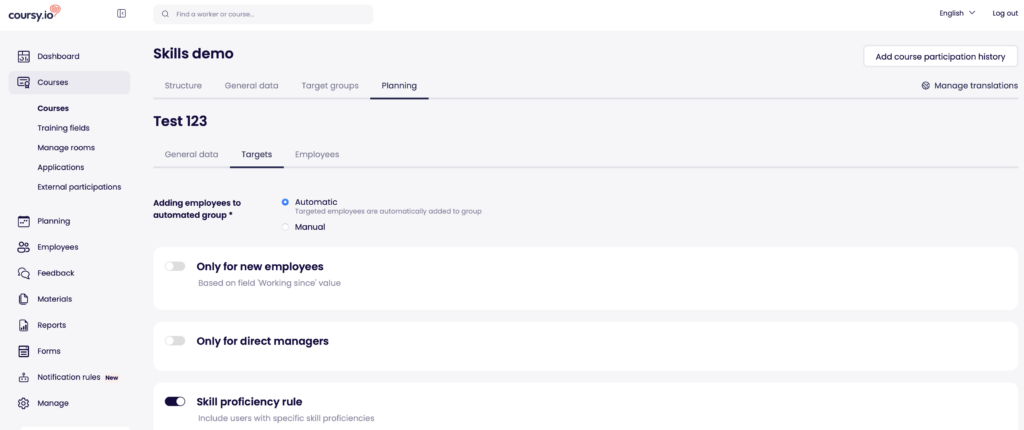
To configure automated planning based on skills navigate to Courses -> Specific course -> Planning -> Automated planning
How does it work?
Using skill gaps to automatically plan the course requires you to add the appropriate configuration to the course you wish to automatically plan.
The skill gap rule can be found in the “Targets” tab inside automated planning group.
Once the rule has been enabled and configured then users are added to the automated planning group based on their skill proficiency levels. Please note that course target group settings also apply so make sure those are also on par with what you desire.
Setting up the rule
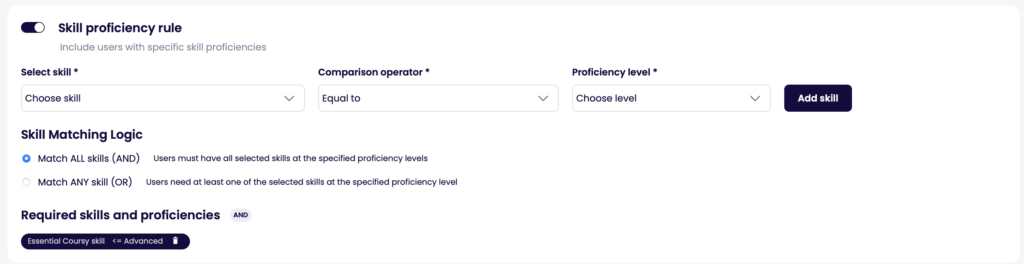
- Enable the rule by checking the toggle button
- Find the skill you need
- Apply the required comparison operator
- Select the proficiency level you want to use with the selected skill and comparison operator
- Repeat from step 2 to add more than one skill to the rule
- When adding multiple skills to the rule then you are able to choose how they are handled inside the rule
- AND will match all the selected skills to users skill set
- OR will match one or more of the selected skills to users skill set